GoGoLoco, Poiyomi, VRCFury & More: What Are These and Why Does Your Avatar Need Them?
After going through the upload process with well over a hundred avatars, here's what I actually install and why.

When I started buying avatars, I didn't really understand the repository thing. I just kept clicking install on whatever the creator told me to and hoping for the best. After going through that process with well over a hundred avatars, I can tell you I still don't fully grasp it, but I grasp it a lot better lol. It might be a simple system once you know it, but there just isn't a whole lot of beginner-friendly info out there on it, at least none that I could find. I once asked a creator why all her avatars had missing GoGoLoco scripts and she just flat out ignored me, so here we are.
I'm not confident I could teach a master class on this, but I am confident I can help you upload a working avi. This guide is for anyone who just picked up their first avatar and opened VCC to a wall of unfamiliar names. I've run into every package on this list personally, and I can tell you which ones show up over and over and which ones you'll barely touch.
What Is a Repository?
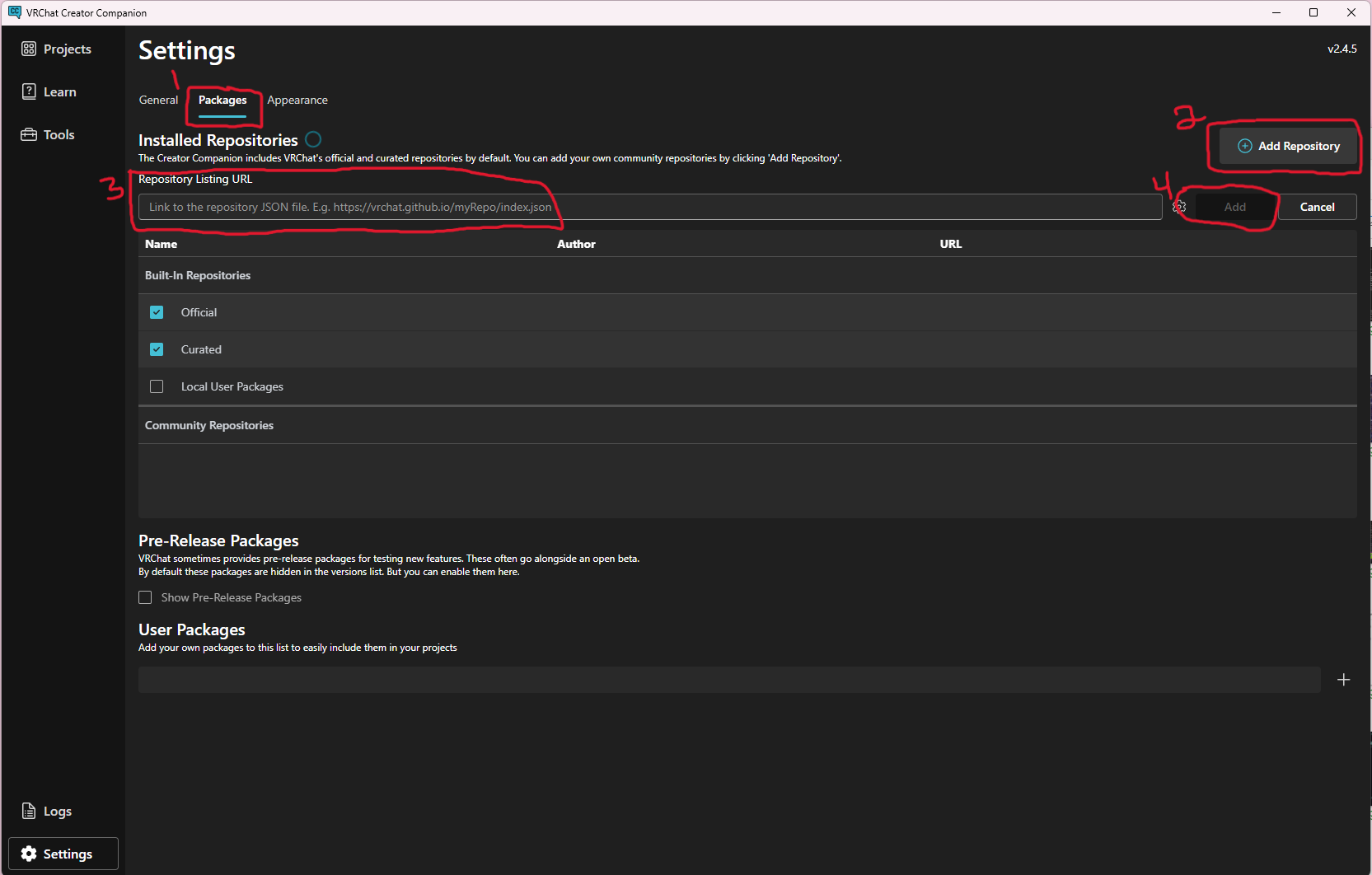
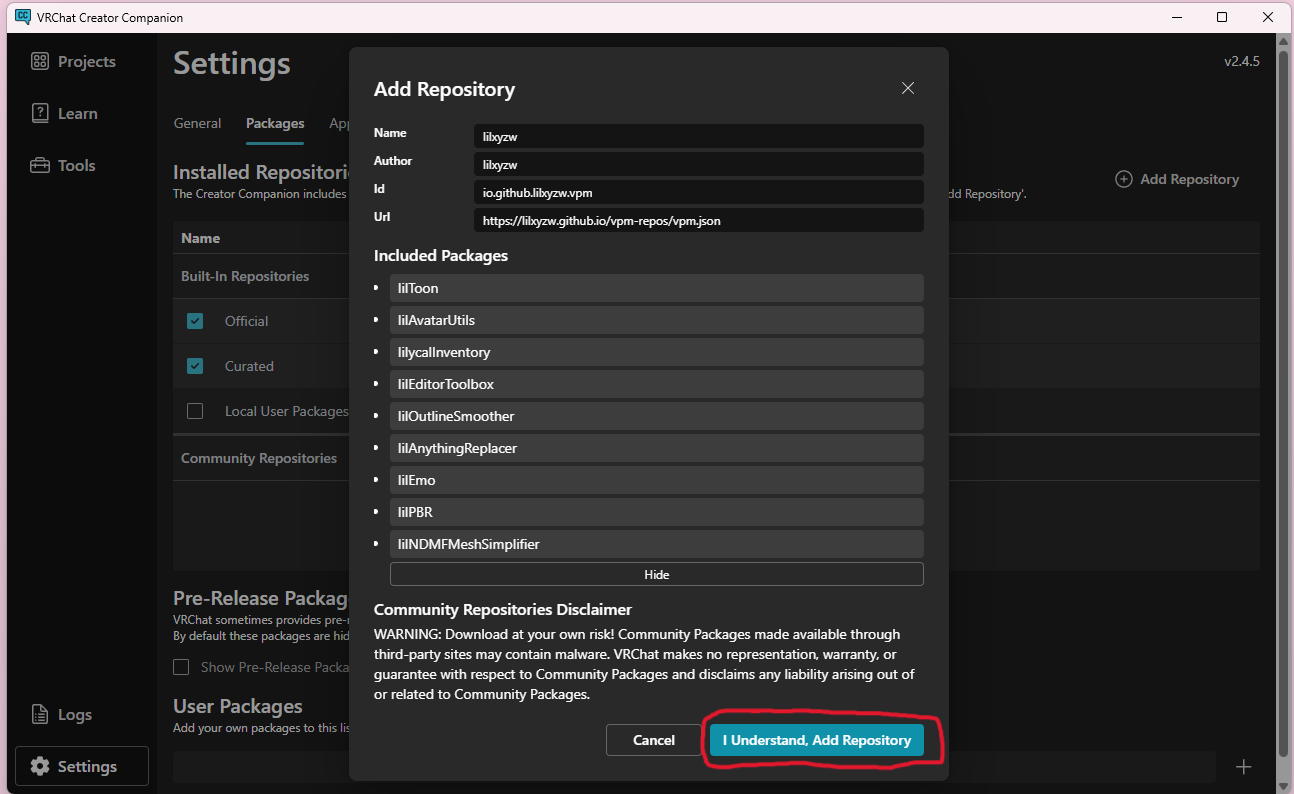
A repository is a source that VCC pulls packages from. Think of it like an app store. VCC comes with a few official repositories built in, but the community has built dozens more that you add manually. Once a repository is added, its packages show up in your project and you can install them with one click.
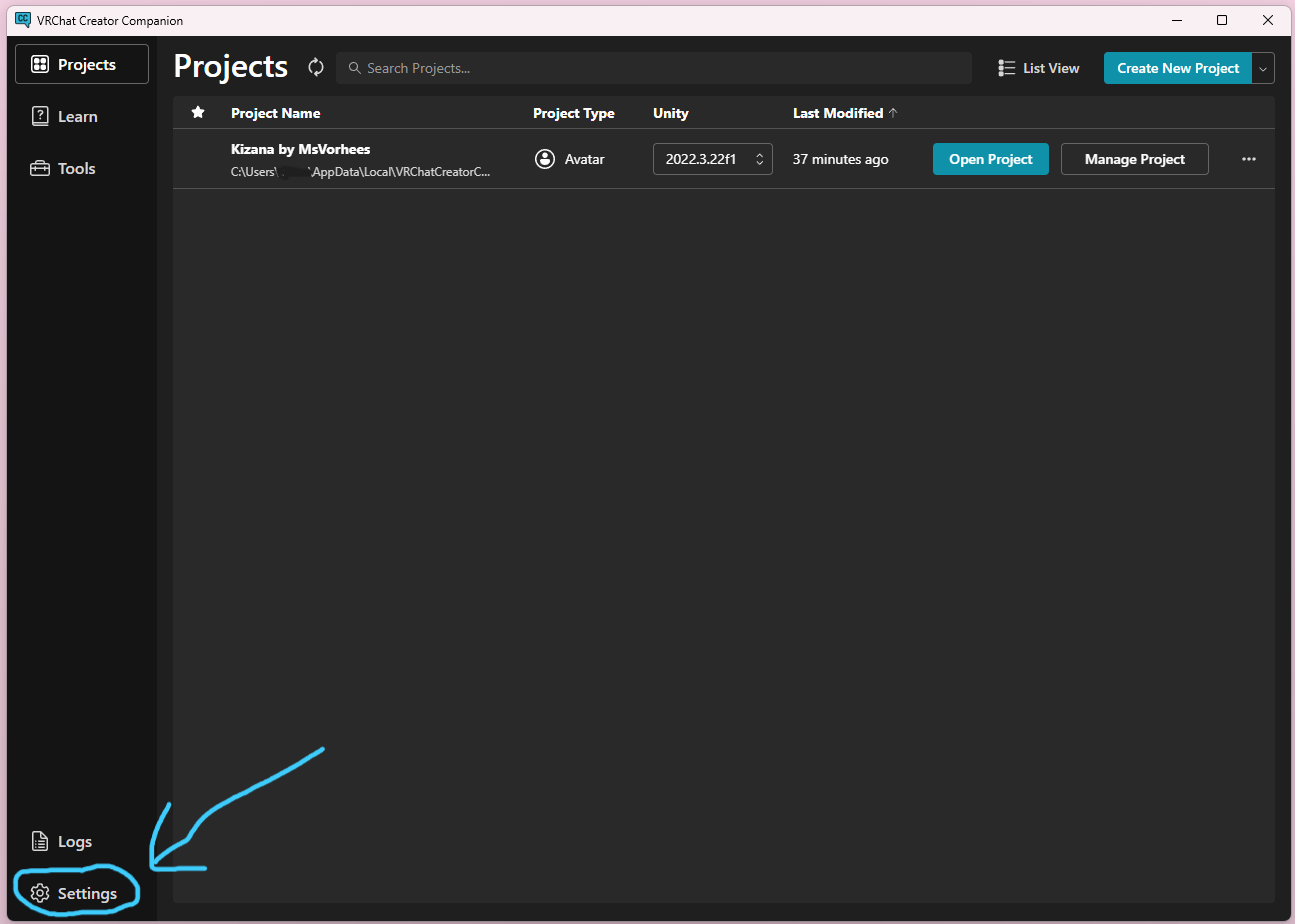
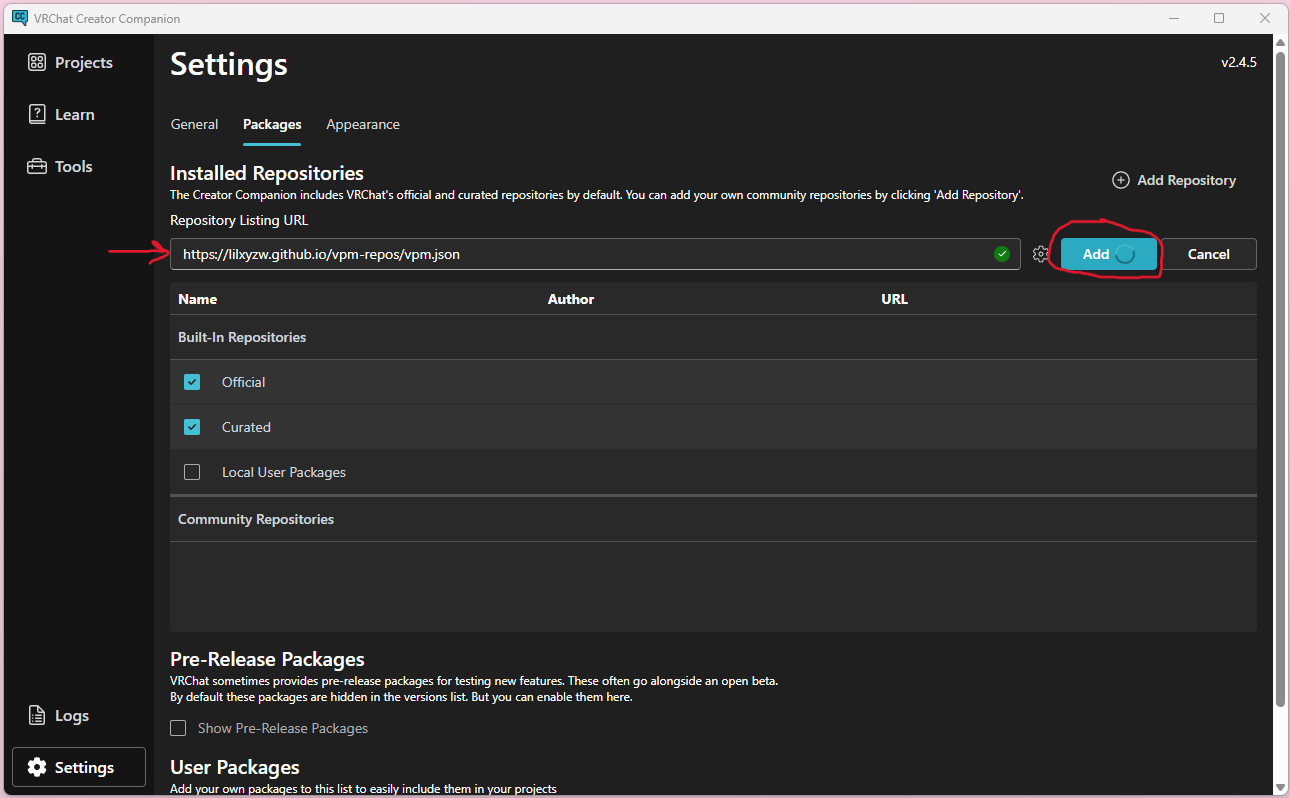
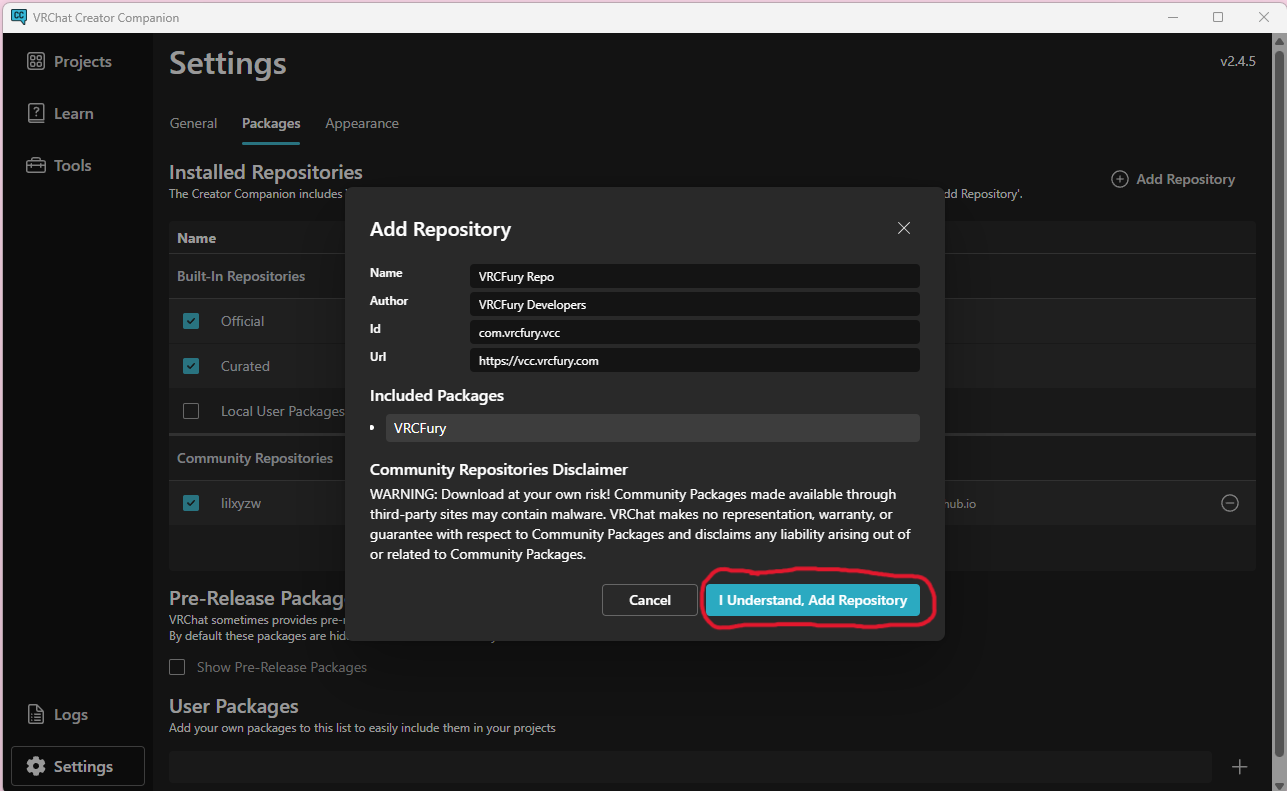
To add a repository in VCC: go to Settings > Packages > Add Repository and paste in the URL.
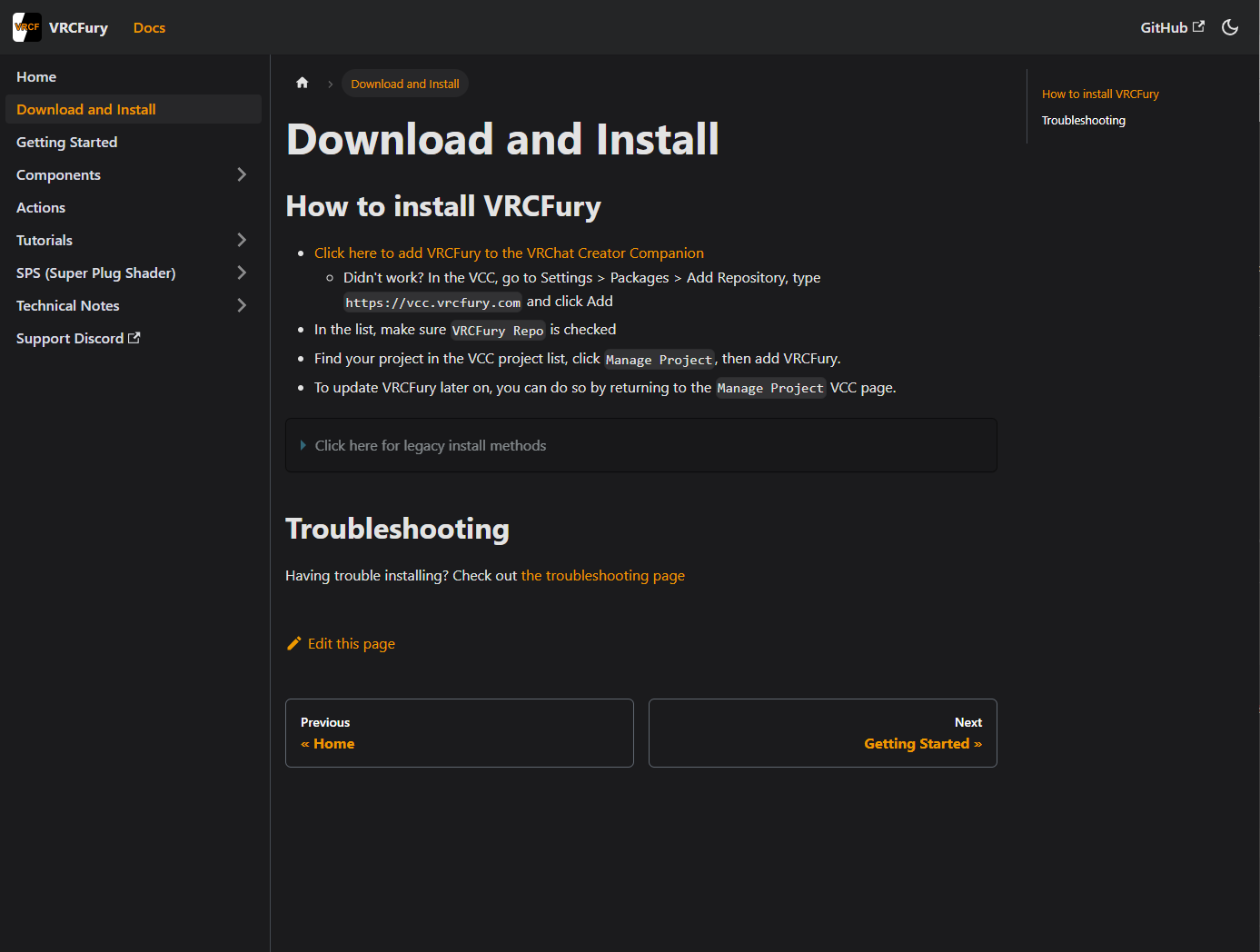
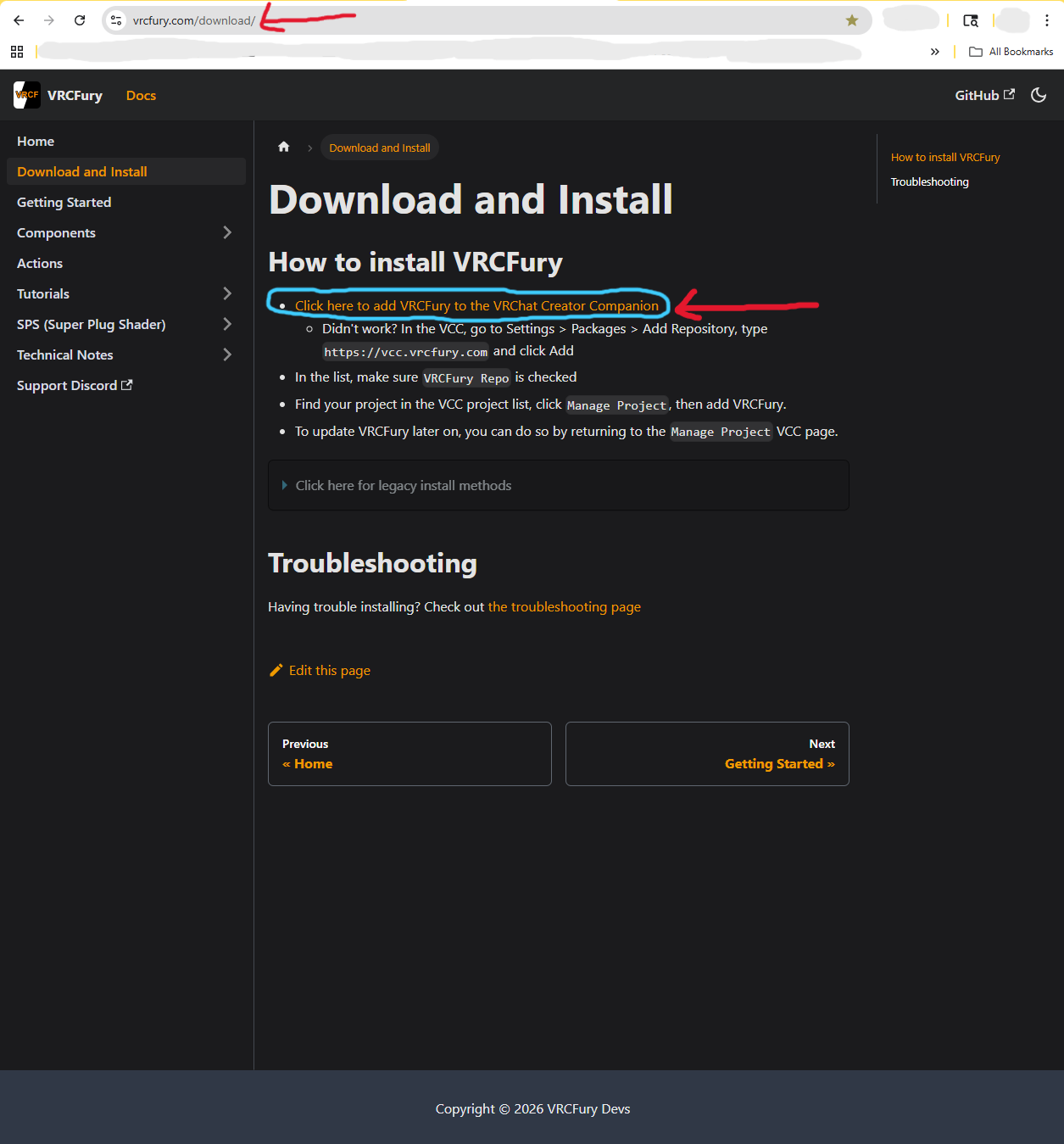
VRCFury
Repo: https://vrcfury.com/download/
The most widely used non-destructive avatar tool in the community. VRCFury handles toggles, clothing attachment, controller merging, and optimization without permanently modifying your avatar files. Most Booth bases either include it or recommend it. Always use the latest version unless the creator specifically tells you otherwise.
Note: some creators build around Modular Avatar (repo: https://modular-avatar.nadena.dev/) instead of VRCFury. It does a similar job with a different approach. You won't need it often, but if your creator's documentation mentions it, that's where to get it. I have yet to use this, but I know some Booth creators use it.
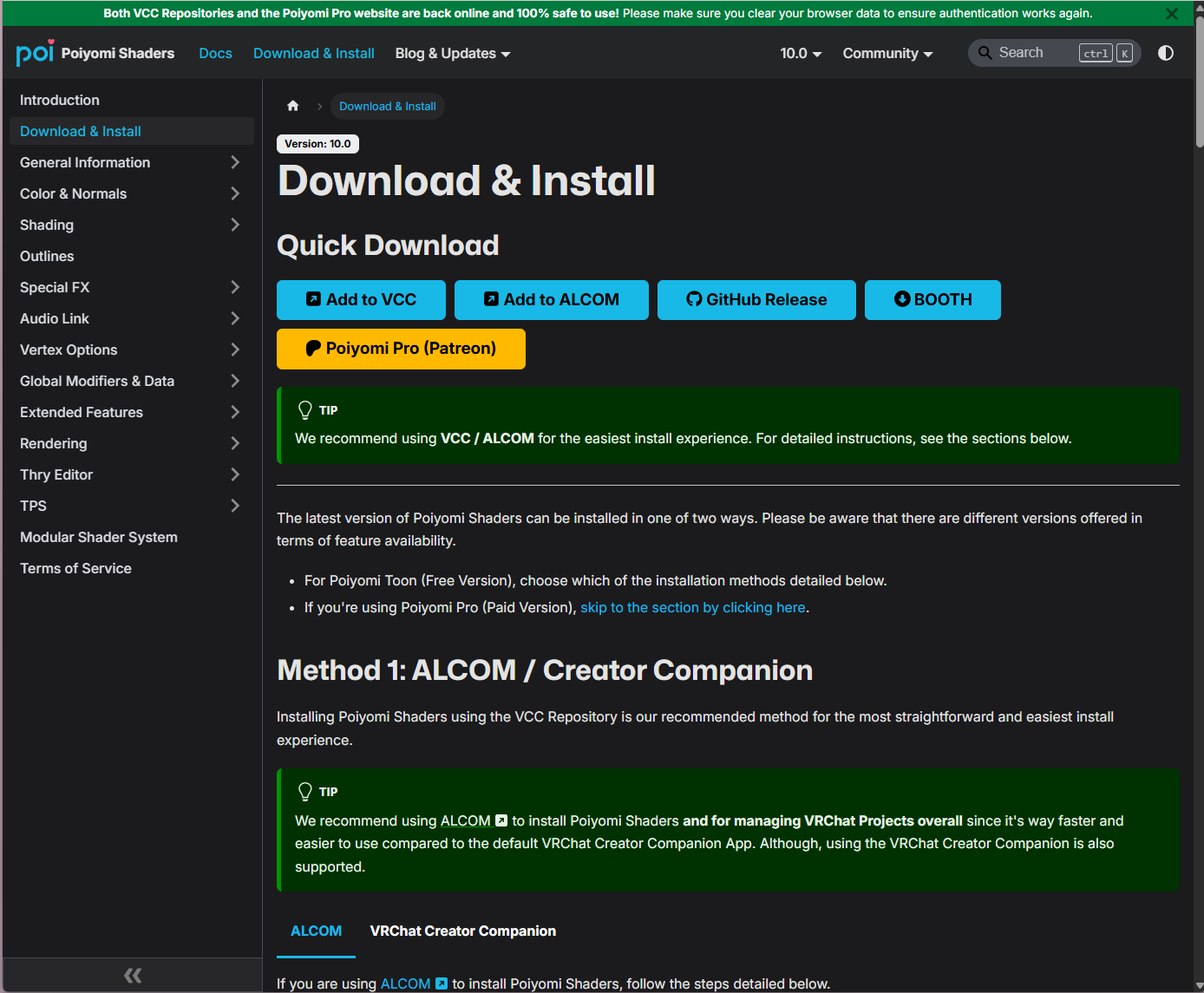
Poiyomi Toon Shader
Repo: https://www.poiyomi.com/download
The most used avatar shader in VRChat. Many creators will include a limited version of Poiyomi directly in their avatar package, so you'll often just drop that into your project once Unity is open. That said, you can also grab the full free version here via VCC. Poiyomi Pro (via Patreon, $10/month) unlocks better dissolve effects and locked shaders.
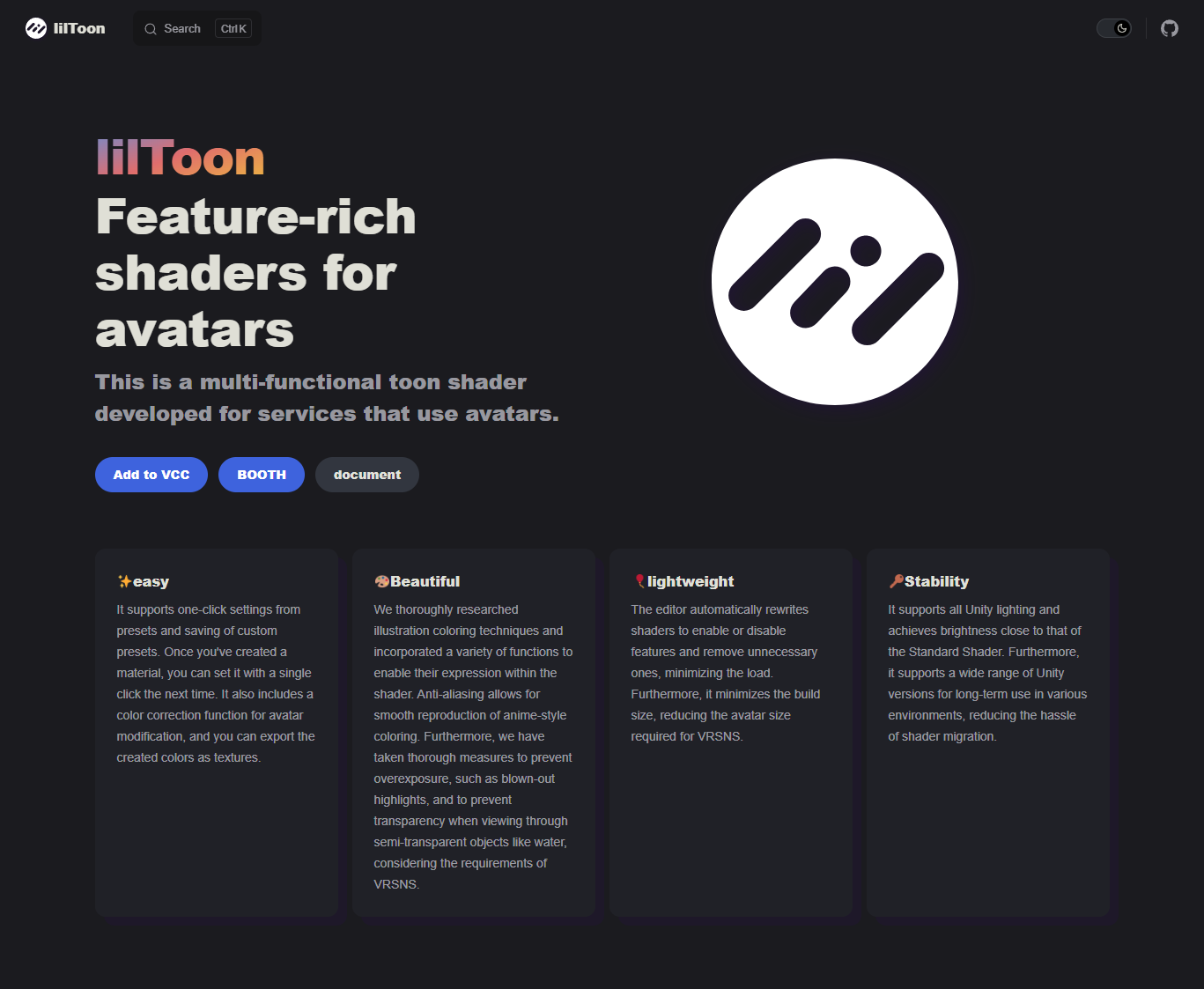
lilToon (by lilxyzw)
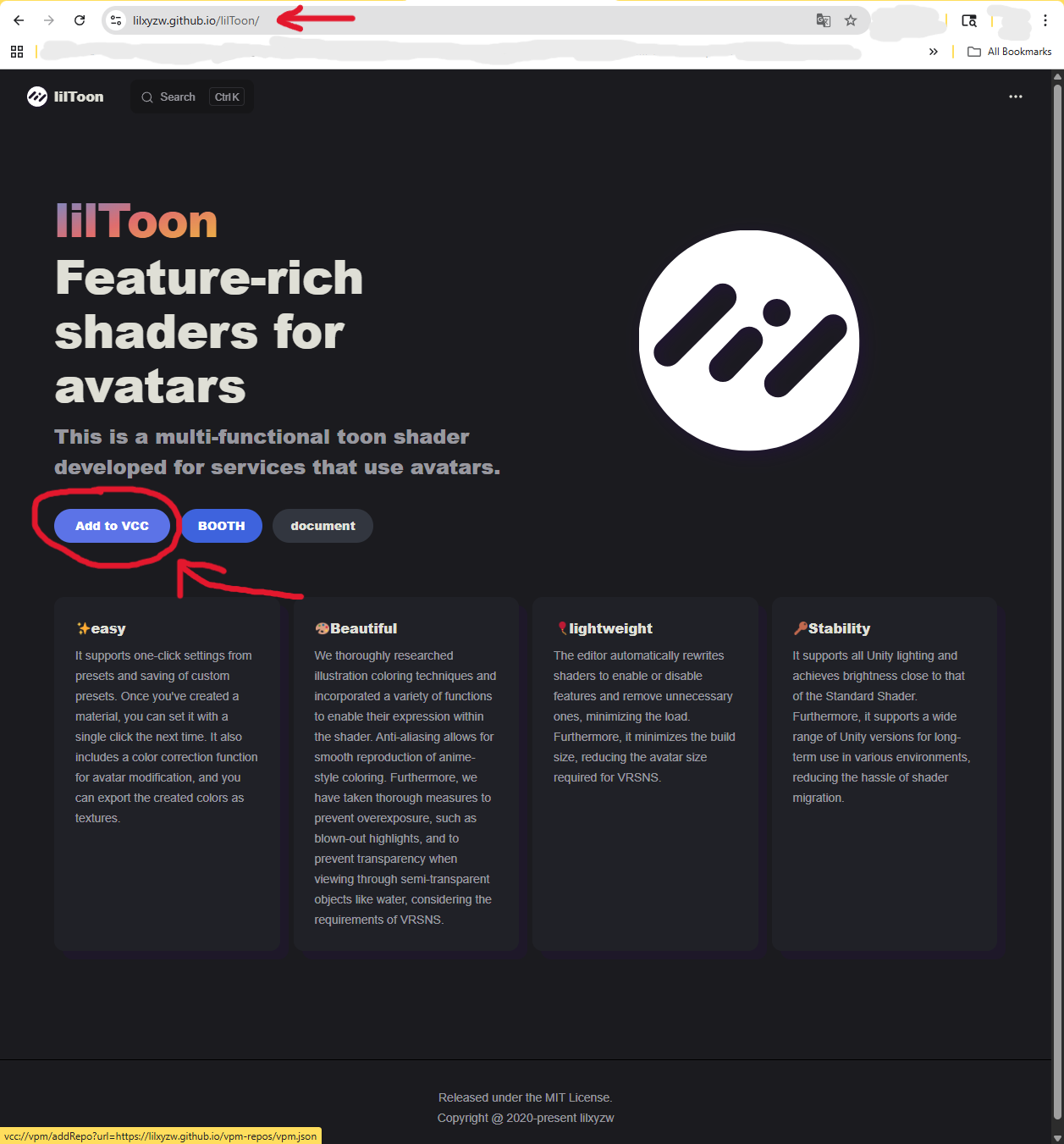
Repo: https://lilxyzw.github.io/lilToon/
A lightweight toon shader that's especially popular with Booth bases and Japanese creators. Great Quest compatibility. I recommend downloading the .unity package directly from the lilToon GitHub instead of using the repo since it tends to be more stable, but the repo works fine too.
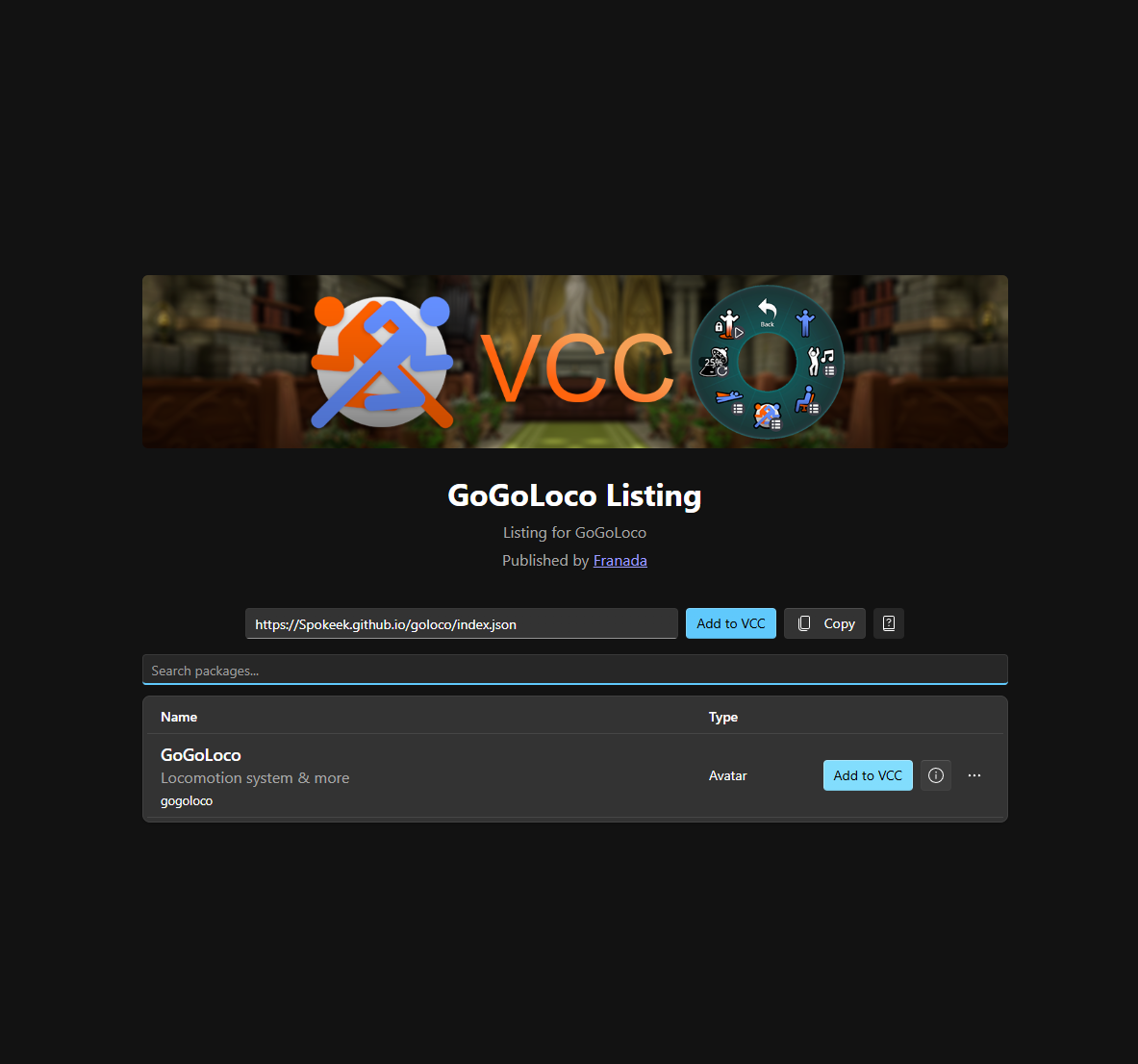
GoGoLoco (by Franada)
Repo: https://spokeek.github.io/goloco/ (for when the creator states "gogoloco included!)
+ prefab download: https://franadavrc.gumroad.com/l/gogoloco (for when gogoloco is not mentioned on the creators page)
Add the repo to VCC regardless of whether your avatar includes GoGoLoco or not. The Gumroad prefab is only needed if your creator didn't include it and you need to drag it onto your avatar manually in Unity.
Adds a locomotion system to your avatar including sitting, laying down, flying, and playspace controls.
Here's the part that trips people up: always install GoGoLoco regardless of whether your avatar already includes it.
Some creators pre-build GoGoLoco into their avatar package. When that happens, the prefab is already in your hierarchy and you don't need to add it yourself. But Unity still needs the GoGoLoco package installed to find the scripts. If it's missing, you'll get missing script errors even though the avatar "already has it."
The difference is:
- Avatar includes GoGoLoco: Install the package, don't add the prefab (file) yourself. It's already there.
- Avatar doesn't include GoGoLoco: Install the package, then drag the GoGoLoco prefab (file) onto your avatar.
Either way, install the package in VCC. Check your creator's documentation to find out which situation you're in.
If your creator doesn't mention GoGoLoco at all, you can still add it yourself. It works on basically any avatar. You'll just need to drag the prefab onto your avatar manually in Unity once your project is open.
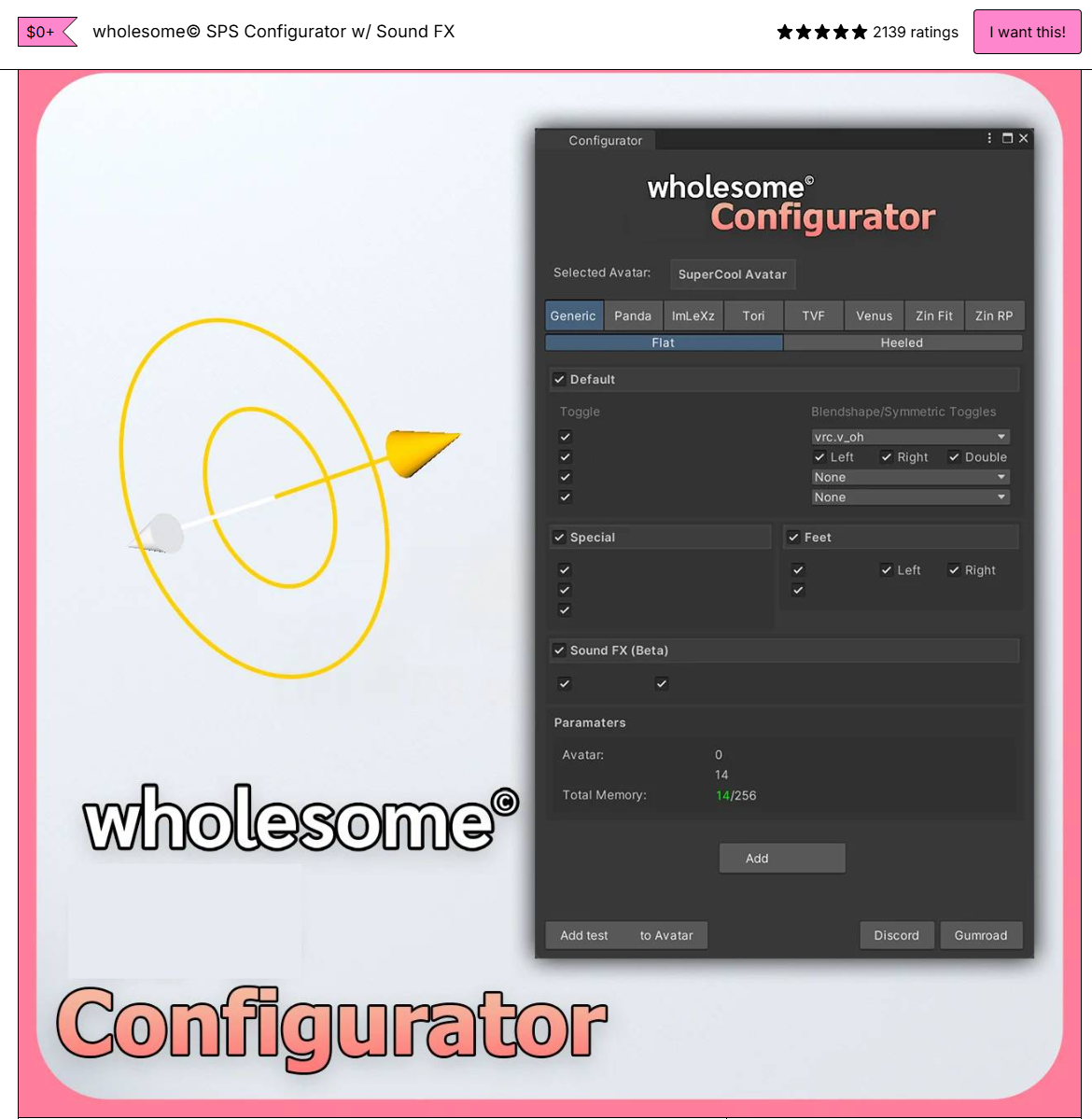
Wholesome SPS Configurator
Download: wholesomevr.gumroad.com/l/sps (free, pay what you want)
SPS (Spicy Particle System) is an interaction and physics system for avatars. The Wholesome Configurator is the tool that sets it up in Unity, with support for sound FX and blend shape toggles. It's one of the most downloaded avatar tools in the community. Install as a .unity package from Gumroad.
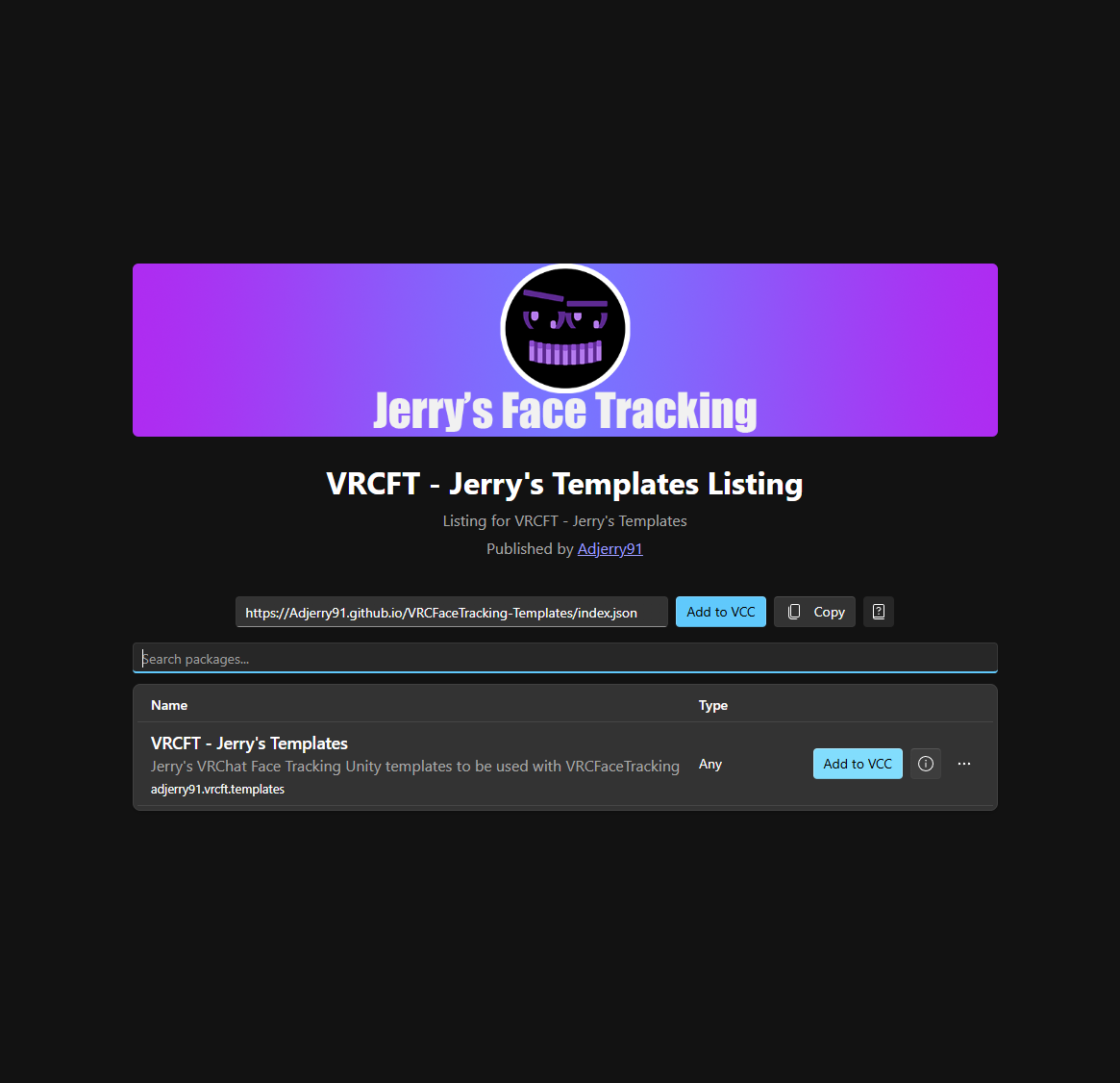
Face Tracking: Jerry's VRCFT Templates
Repo: https://adjerry91.github.io/VRCFaceTracking-Templates/
If you want your avatar to support face tracking, you need two things: the VRCFaceTracking app installed on your PC, and a Unity package that sets up the parameters and animations on your avatar. The Unity side is where Jerry's Templates comes in.
There are multiple face tracking template packages out there and the VRCFaceTracking ecosystem has grown a lot. Jerry's Templates is the most widely used option and the one you'll see recommended most often in the community, so it's a safe starting point. Add the repo to VCC and install from there.
Note: face tracking requires compatible hardware (like a Quest Pro or an eye/face tracking headset). If you don't have that hardware yet, you can skip this one for now.
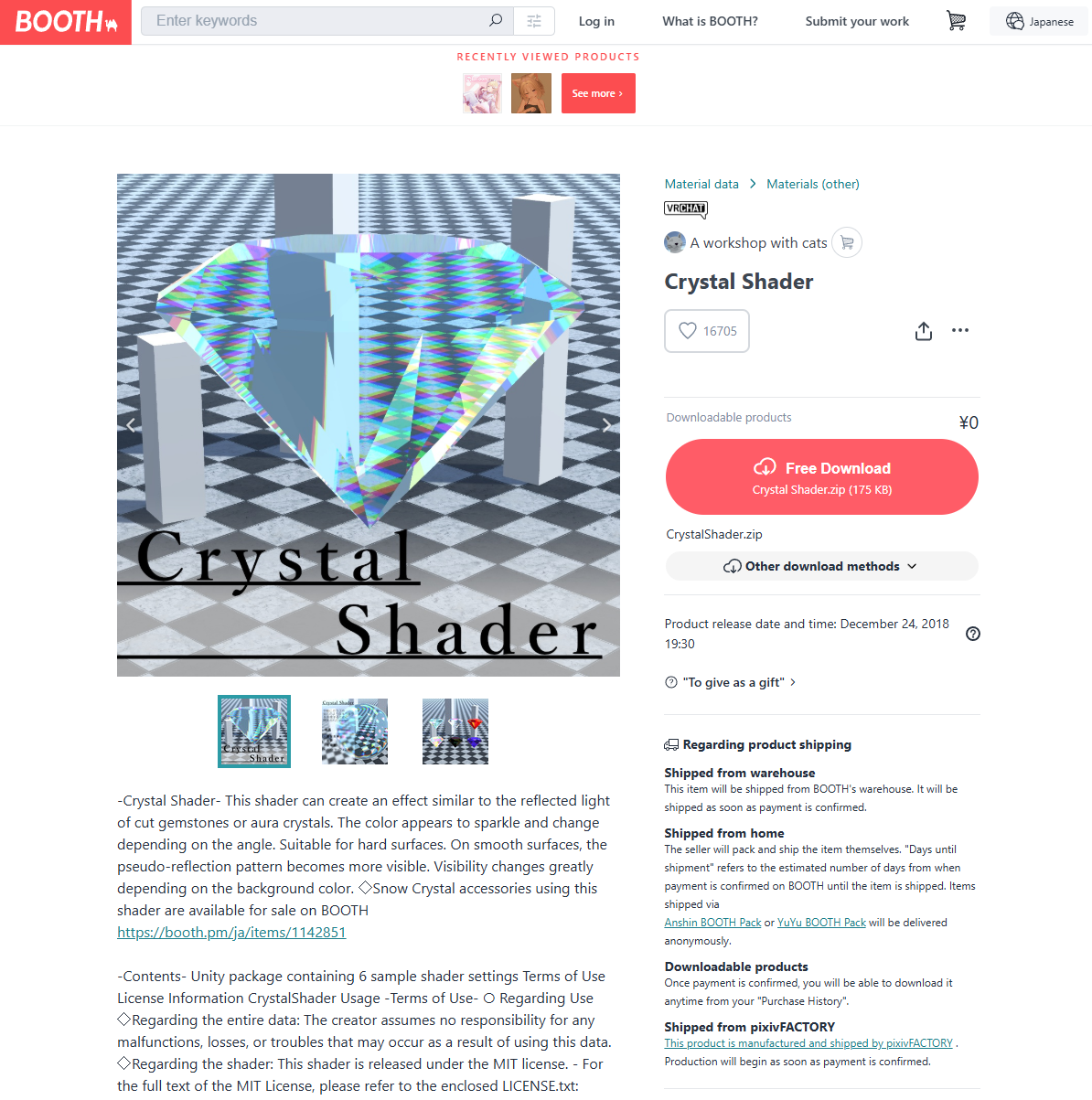
Crystal Shader
Download: booth.pm/ja/items/1148311
A stylized shader popular in the VRChat community for achieving a glassy, refractive crystal look. Not something you'll need for most avatars, but if a creator specifies it or you're working with an accessory that uses it, this is where to get it. Install as a .unity package.
What to Install First
If you're just getting started, here's the order that makes sense:
- Add VRCFury (and Modular Avatar if your creator requires it) repos to VCC
- Add GoGoLoco via VCC
- Add Poiyomi or lilToon via VCC, skip if your avatar already includes a Poiyomi package
- Install Wholesome SPS from Gumroad if you need it
- Add Jerry's VRCFT Templates if you have face tracking hardware
Always check your creator's documentation before importing. Most well-packaged avatars tell you exactly what to install and whether GoGoLoco is already included.
Example Walkthrough: Setting Up Kizana by MsVoorhees
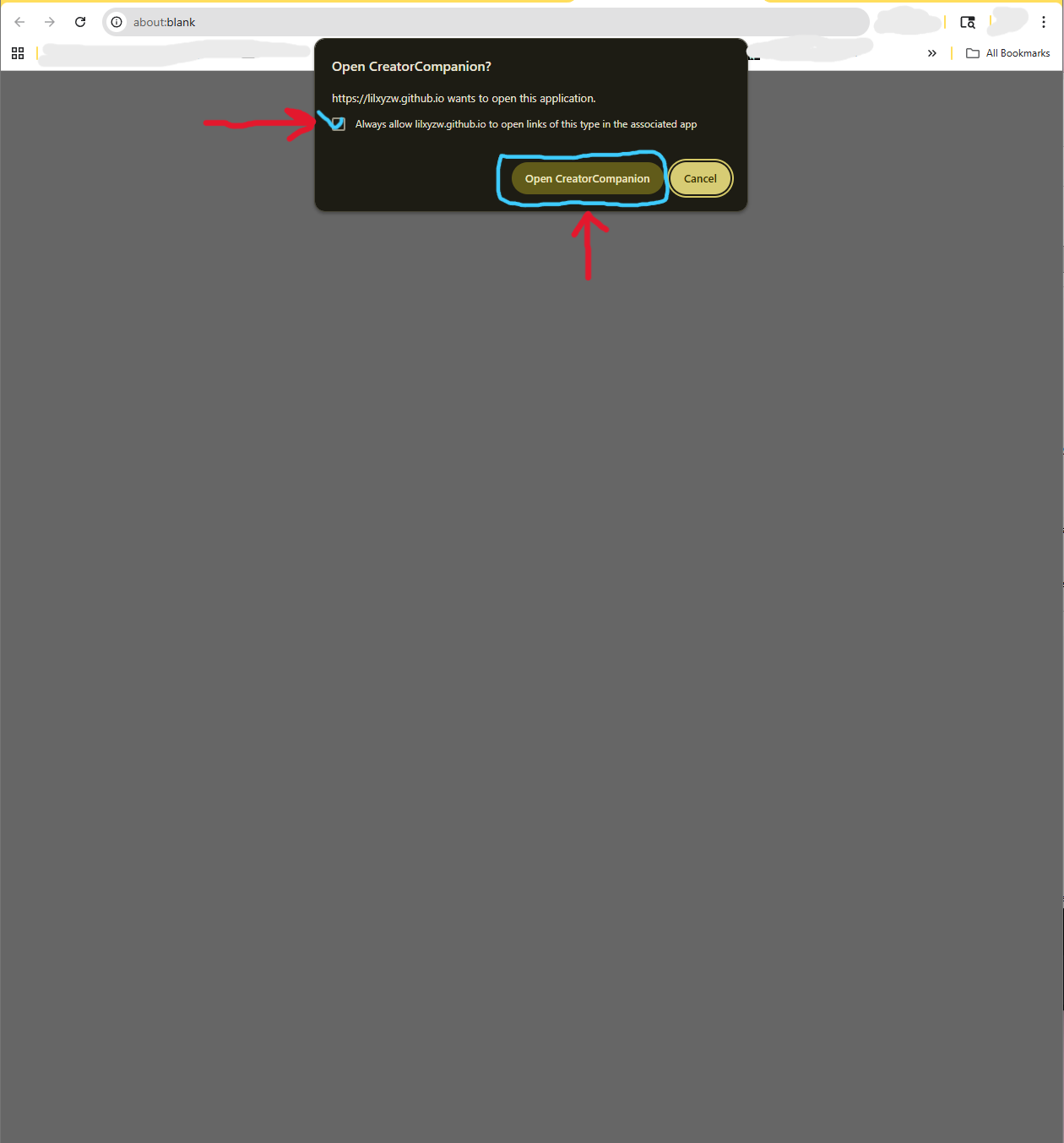
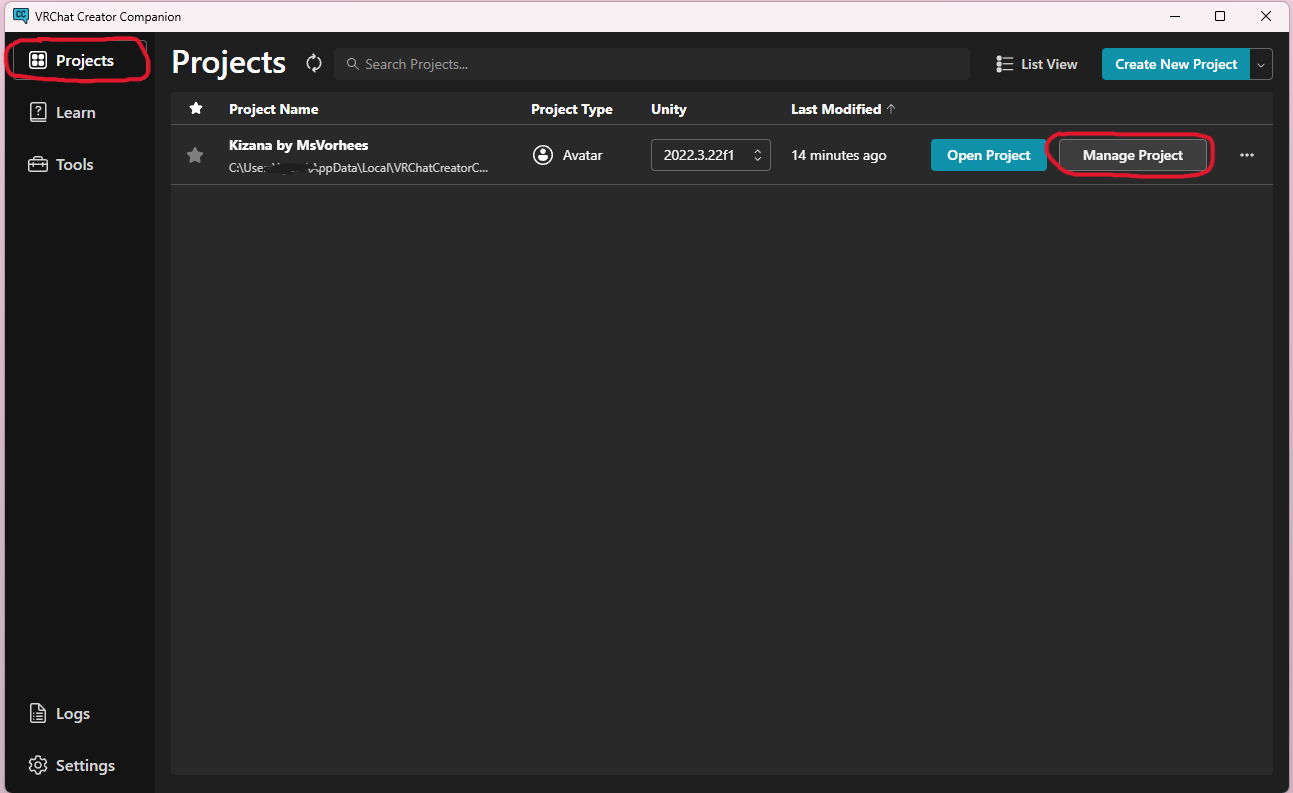
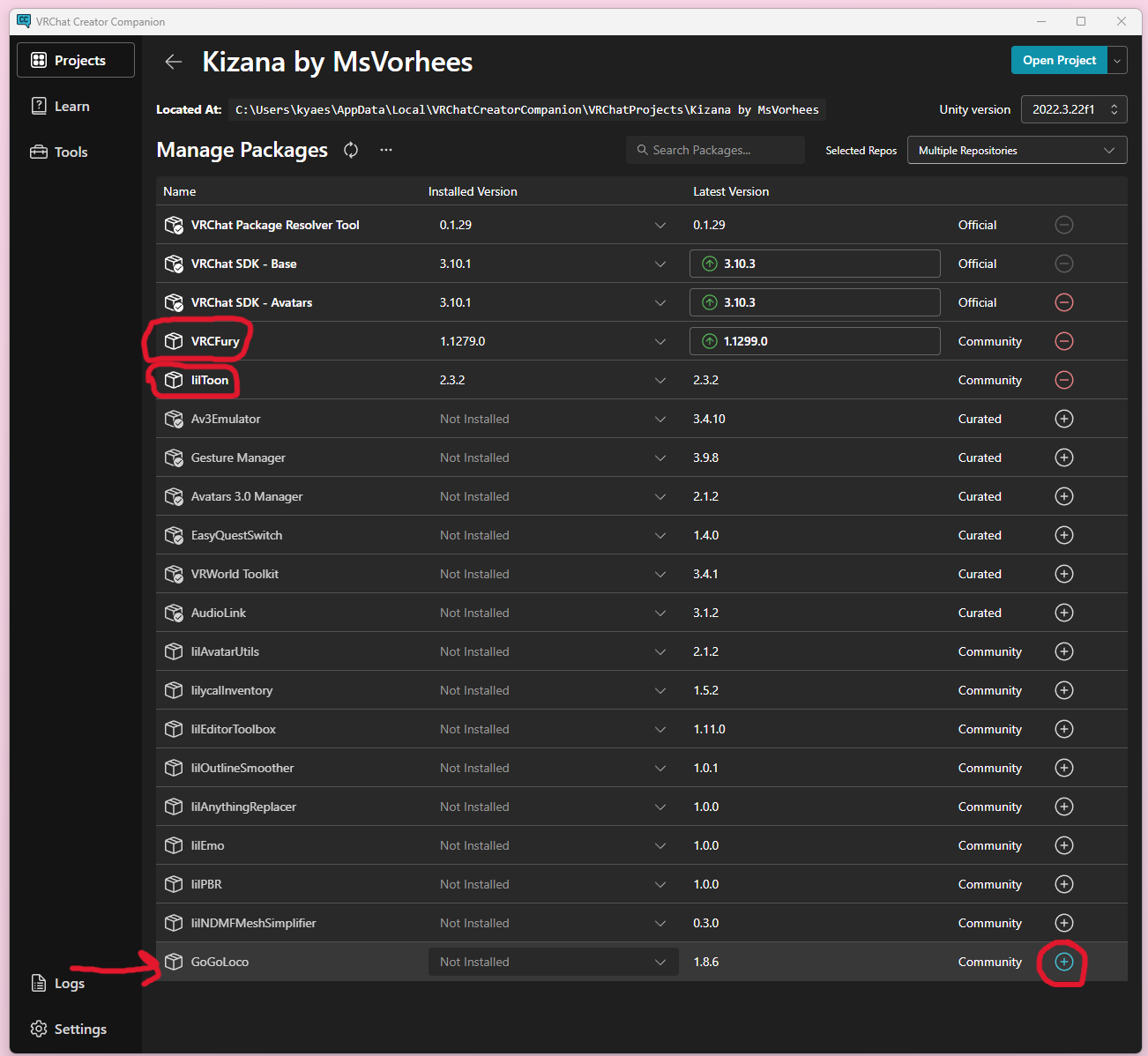
To show you what the process actually looks like, here are a few screenshots of me adding repositories and setting up a fresh project. Some repos add with one click from the creator's site, some you'll paste the URL in manually, and some like Poiyomi Pro come as a straight up file download.
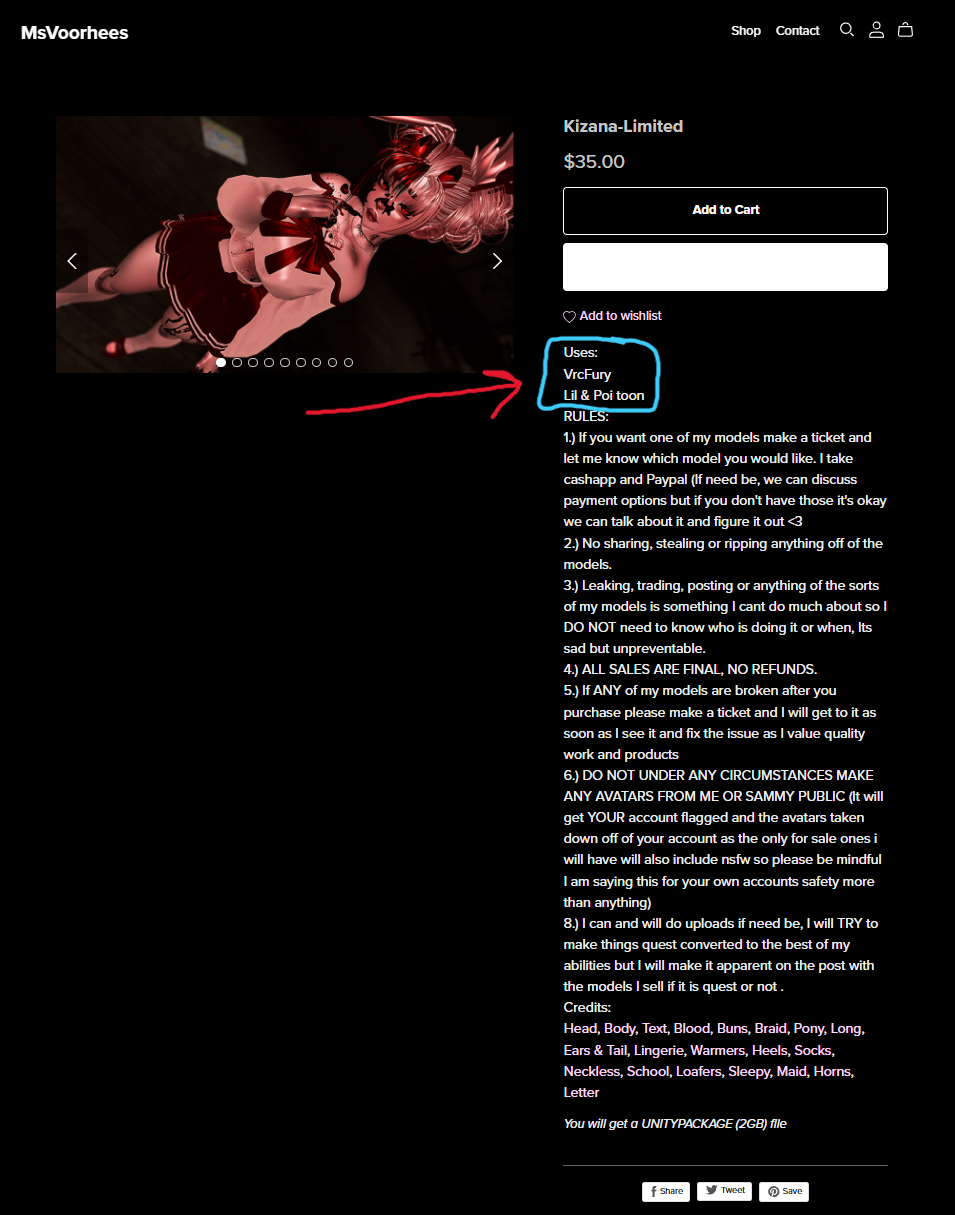
For this example I'm adding the repositories needed for Kizana by MsVoorhees. As you can see on her product page, she lists everything you need nice and clearly. I already have VCC open and ready to go.
MsVoorhees doesn't list GoGoLoco as a requirement, but I'm adding it to the project anyway by installing it through VCC. It's worth doing even when the creator doesn't mention it so the scripts don't break down the line. Since it's not included in her package I'll also need to drag the prefab onto the avatar manually once I'm in Unity.
What's Next
Once your packages are set up, you're ready to import your avatar and get into Unity. If you haven't done that part yet, my complete beginner upload guide walks through the whole process from the start:
lilnicreates.com/vrchat-avatar-unity-setup
If you have questions about any of these packages, come find me in the Discord.